

Prerequisites
The Bitbucket account used to connect Hacktron must:- Have access to the repository you want Hacktron to review.
- Have Admin permission on each selected repository so Hacktron can create and update repository webhooks.
- Be able to sign in to Bitbucket and approve the OAuth Request.
We recommend using a dedicated Bitbucket account for the Hacktron integration
instead of an employee’s personal account. This keeps repository access and
automated pull request comments associated with a separate integration
identity.A dedicated account is optional; an existing Bitbucket repository
administrator can also connect to Hacktron.
Configure access
1
Create a dedicated Bitbucket account (recommended)
You can skip this step if you intend to connect Hacktron using an existing
Bitbucket repository administrator.
2
Grant repository access
In Bitbucket, open Repository settings → Repository permissions and
select Add users or groups.Add the account that will connect Hacktron, assign the Admin permission,
and click Confirm.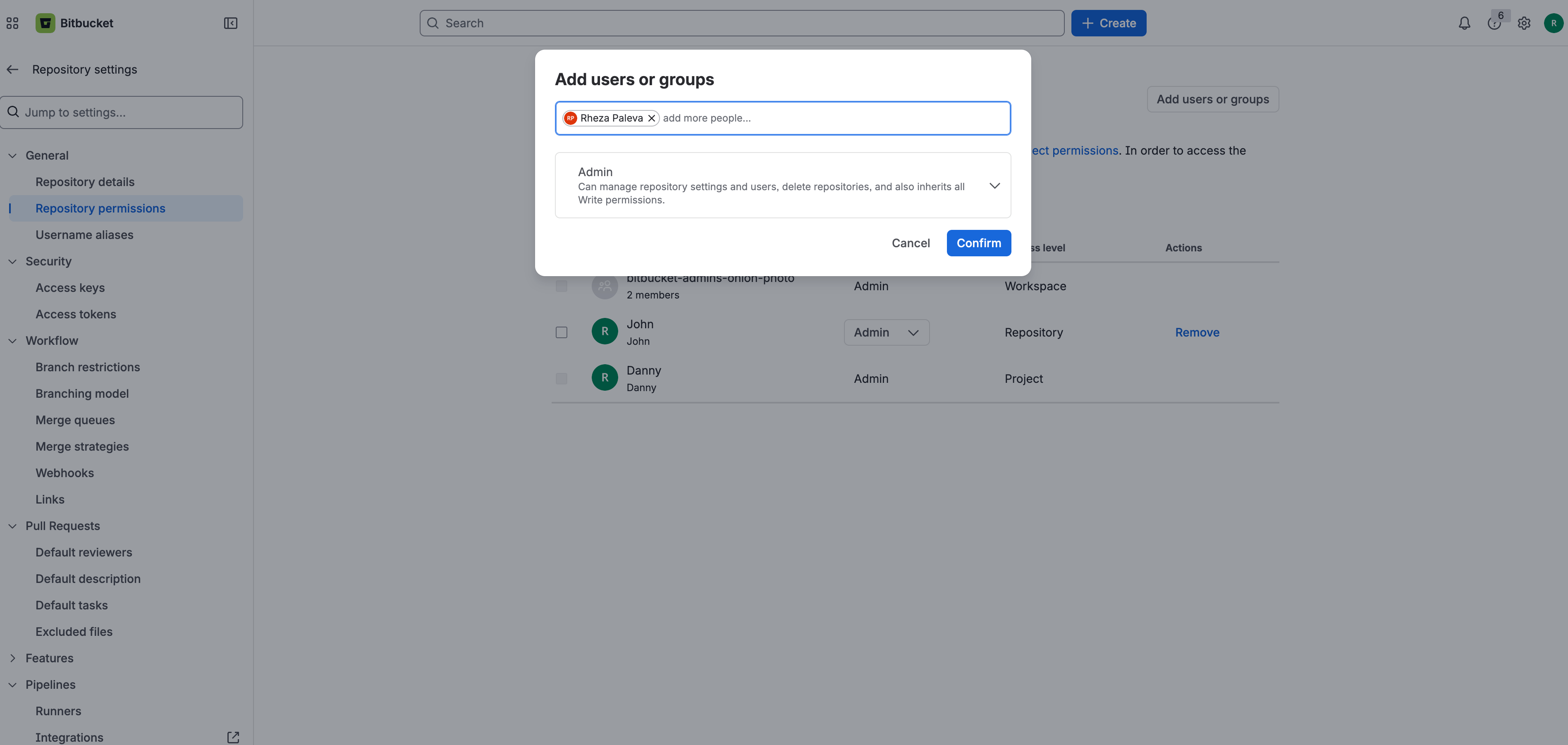
For multiple repositories, you can manage access through a Bitbucket group
or grant the account Admin permission at the project level.
3
Sign in to Bitbucket
Sign in with the dedicated Bitbucket account you created in step 1. If you
chose to use an existing repository administrator account, sign in with that
account instead.
4
Open the Integrations page
In Hacktron, go to Integrations and click Connect under
Bitbucket.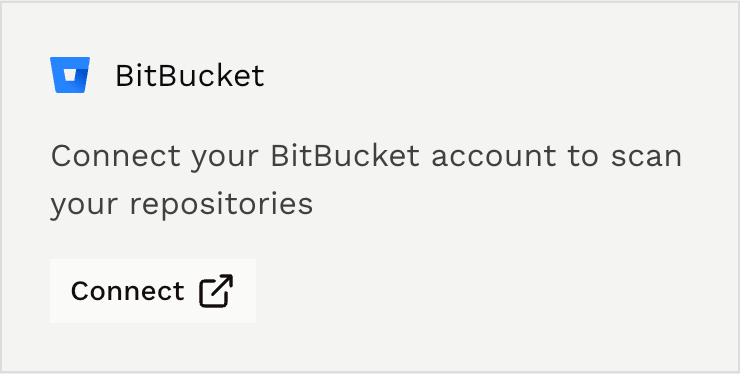
5
Authorise Hacktron
Review the permissions requested by Hacktron and click Accept.Bitbucket will redirect you to Hacktron after authorization is complete.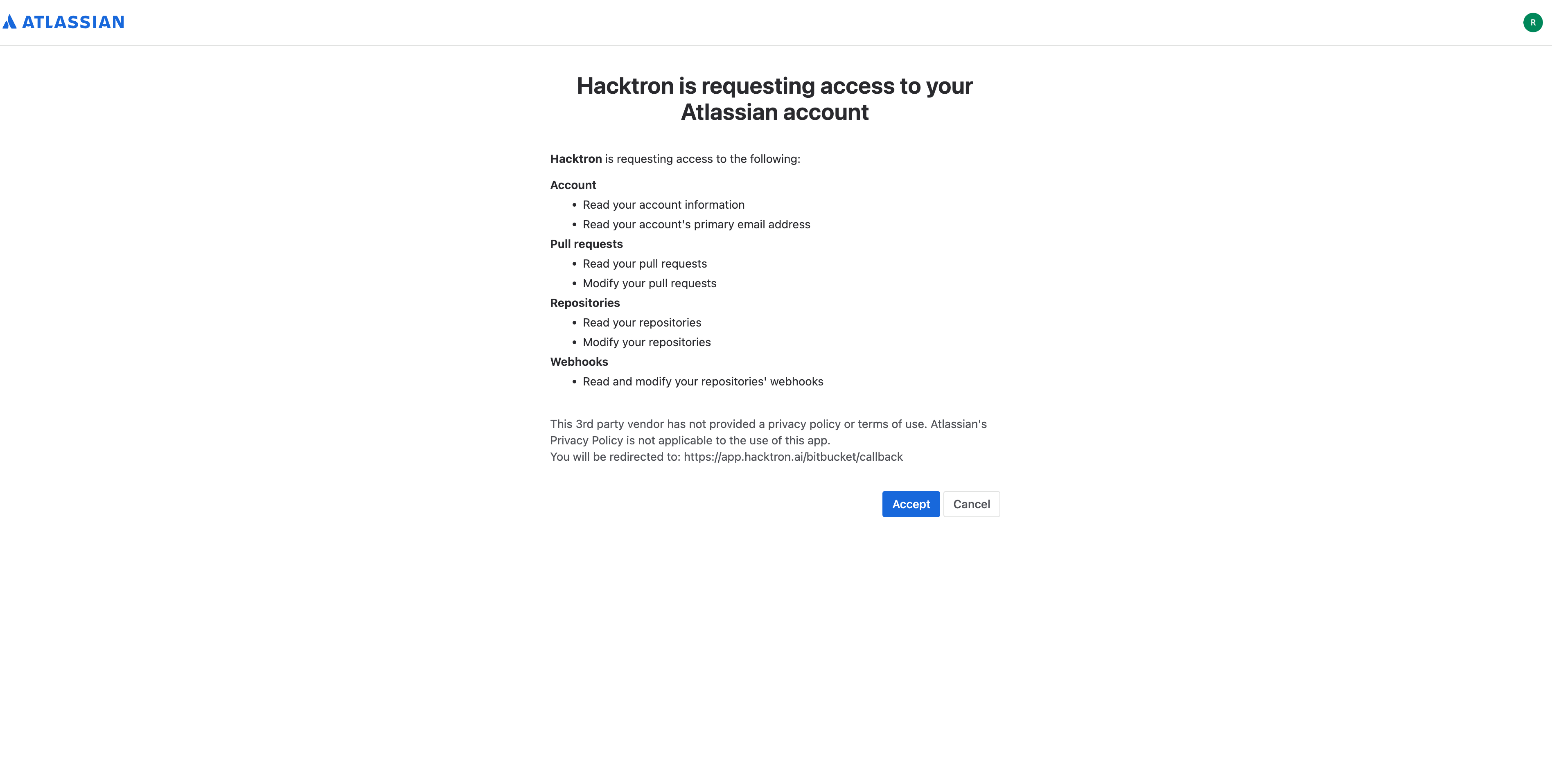
6
Select repositories
Select the repositories you want Hacktron to review and save your selection.Hacktron automatically creates the required webhook for each enabled
repository. You do not need to configure the webhook manually.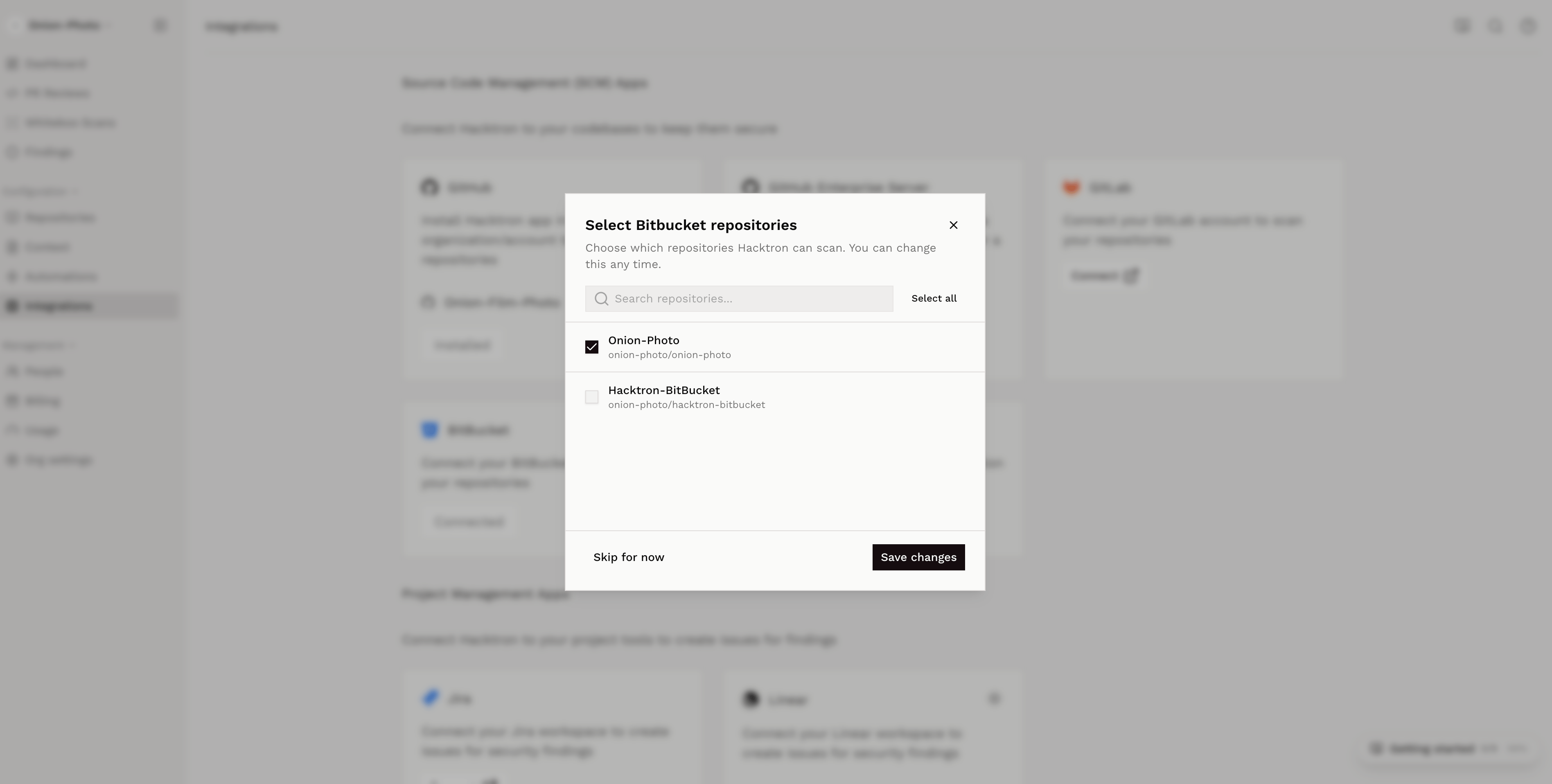
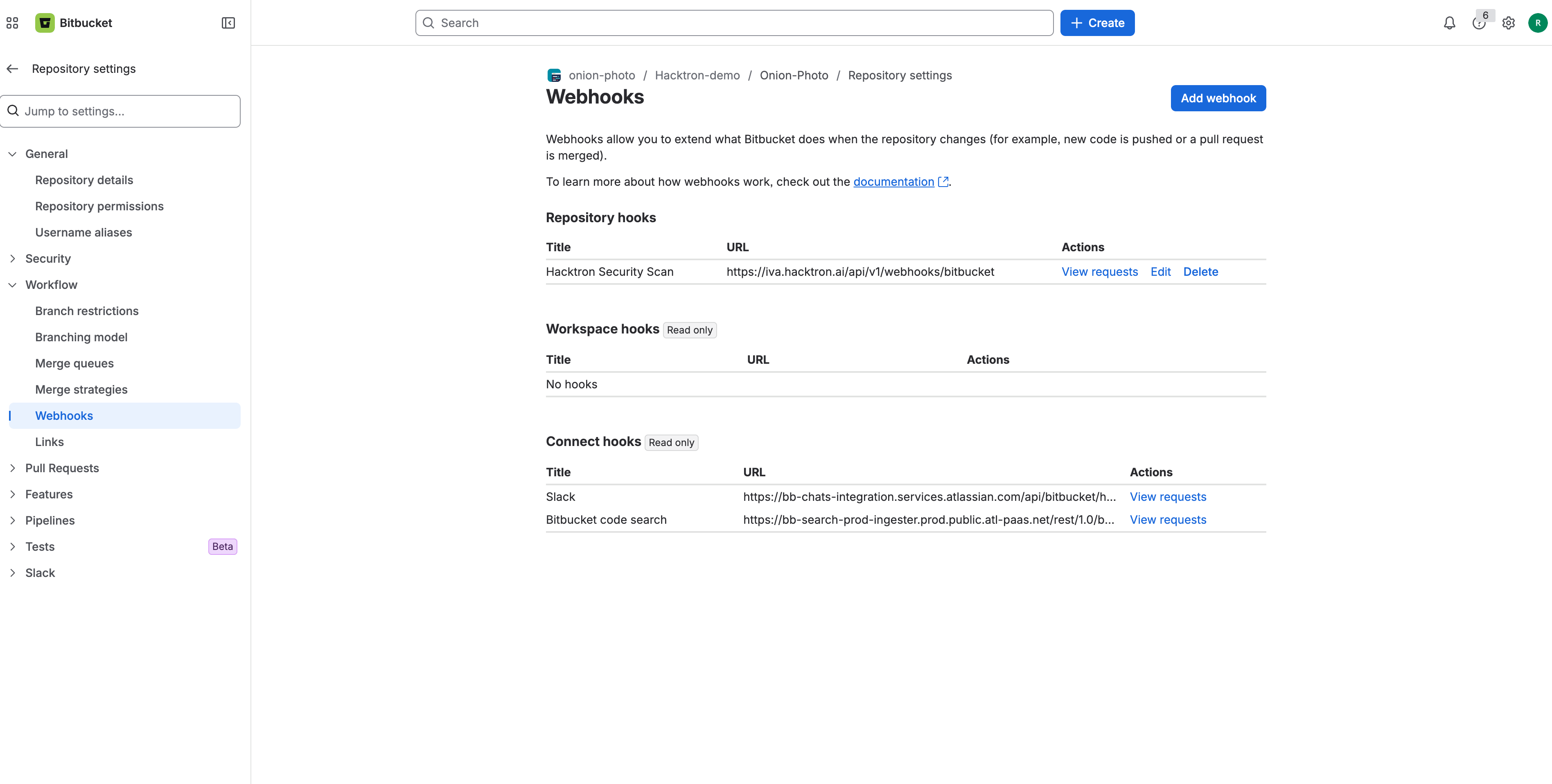
https://iva.hacktron.ai/api/v1/webhooks/bitbucket