

What you can ask it to do
Before changing a finding, stopping a scan or updating PR review settings, Hacktron shows you what will change and asks you to click Approve. Starting a pentest requires approval from an organization admin.
Set up
1
Connect your workspace (organization admins)
In Hacktron, go to Integrations and find Slack under
Notifications. Click Connect, then Connect Slack in the panel
that opens. Approve the Hacktron AI app for your workspace to install it.
See
Slack for the full steps.
If Slack is already connected but Hacktron can’t read attached archives,
disconnect Slack and connect it again from Integrations to grant
file access.
2
Link your Slack account
In Hacktron, open Personal settings, find Connected accounts and click
Connect next to Slack. Choose the workspace connected to your
organization so Hacktron can match your Slack and Hacktron accounts. See Link your Slack
identity.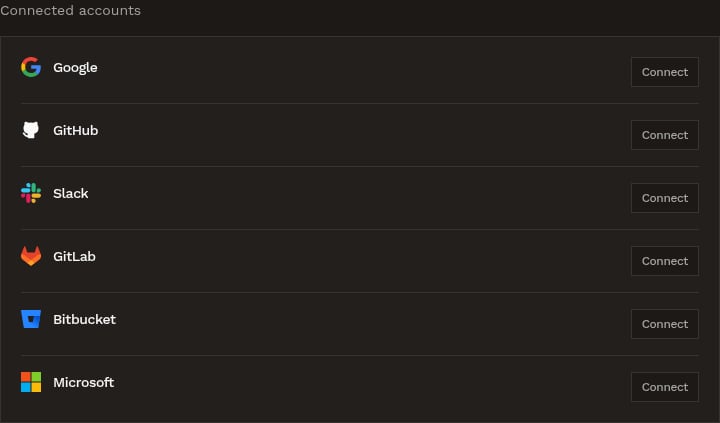
3
Add Hacktron AI to a channel
In Slack, open the channel and send
/invite @Hacktron AI. You can also
click the channel name, open Integrations and click Add apps. This
works for public and private channels.To send a direct message, find Hacktron AI under Apps in
the Slack sidebar and send it a message.4
Send your first request
Mention @Hacktron AI with a request. The first time, Hacktron sends
you a private Connect Hacktron message. Click the button, sign in to
Hacktron and allow access. Hacktron waits for you to connect, then
continues with your request in the thread.
Ask about findings
Ask in your own words, for example:- “How many critical findings are open in acme/api?”
- “Show me the high severity findings from the last pentest”
- “Which repositories have the most open findings?”
Act on findings and scans
Ask Hacktron to change a finding’s status, add a comment, stop a running scan or discard a pentest draft. Review the proposed change and click Approve. Hacktron confirms the result in the thread. Each finding card also has buttons to update its status or fix it with AI.Ask how Hacktron works
Ask a product question, such as “How do I stop reviews of PRs into release branches?” Hacktron answers from the documentation and links to the relevant page. If the docs don’t cover your question, it tells you.Manage PR reviews
Ask Hacktron to turn PR reviews on or off for a repository. You can also change organization settings, including whether reviews post comments, which finding severity fails the PR check, and filters for target branches, labels, authors and title keywords. Anyone can ask to see the settings. Only organization admins can change them, after reviewing the change and clicking Approve.Set up a pentest
1
Say what to test
Name a connected repository, or attach a
.zip, .7z or .tar.gz archive
of the code (up to 2 GB) to your message.2
Narrow the scope
To test part of the code, name the folders in the thread, for example “only
the services/payments folder”. You can keep the same archive.
3
Add a live site (optional)
Provide a deployed app URL if you want live testing alongside the code
review. Use a staging environment where possible. Without a URL, the pentest
reviews the code only.
4
Confirm the cost
Hacktron estimates the pentest and asks you to confirm.
5
Start it
Hacktron posts an approval card. An organization admin clicks Start
pentest. Credits are spent when the pentest starts.
6
Get the results
When the pentest finishes, Hacktron posts the results in the same thread.
Test a site signed in
If the live site requires a login, click Add login details to open a private form. The form sends your details directly to Hacktron for encrypted storage. It keeps them out of the Slack thread and the assistant’s conversation. Use this form rather than pasting credentials into Slack. Hacktron then checks that it can sign in and posts the result in the thread. If the check fails, click Update login details to fix them. A pentest uses the same access mode for all its live sites: signed in or without a login. To test both, create separate pentests.Signed-in testing must be enabled for your organization. If it isn’t
available, Hacktron lets you know. You can still test without signing in.
Follow what it’s doing
A progress card at the top of the reply shows Hacktron’s plan and the steps it takes.Limits
- The Slack assistant can read attached archives, but it doesn’t build or run your code. Provide a deployed app URL for live testing.
- Each thread has a usage limit. When a thread reaches it, Hacktron stops and asks you to mention it in a new thread.
- If Hacktron can’t read an attachment, ask an organization admin to disconnect Slack and connect it again from Integrations to grant file access.
Troubleshooting
- Hacktron doesn’t reply to a mention in a channel. Add it to the channel with
/invite @Hacktron AI, and check that Slack is connected under Integrations in Hacktron. - “Hacktron couldn’t find your account for this workspace.” Link your Slack account from Personal settings > Connected accounts in Hacktron, choosing the same workspace, then try again.
- Hacktron doesn’t answer a reply in a thread. If someone else started the thread, mention @Hacktron AI in your reply. Only the person who started it can continue without a mention.