

Hacktron can automatically create threat
models from your
code and review activity. It does not automatically decide your application
groupings for you.
How Context is organized
Hacktron organizes context at two levels: the repository level and the application level. Repositories are the smallest unit of context, and applications are a group of related repositories that form one product boundary.Repositories
Add documents and view the generated threat model for a single connected
repository.
Applications
Group related repositories into one product boundary and manage shared
application context.
Context documents
A context document is a file you upload or create to help Hacktron understand a repository or application. Hacktron accepts.md, .markdown, .txt, and .pdf files.
Add a document
Upload or create new documents when you want to provide explicit context from your team.1
Select Add Context
On the Context page, select Add Context.
2
Choose a target
Select one or more repositories or applications.
Repository context is tied to those specific repositories. Application context is tied to an application, which can contain multiple repositories.
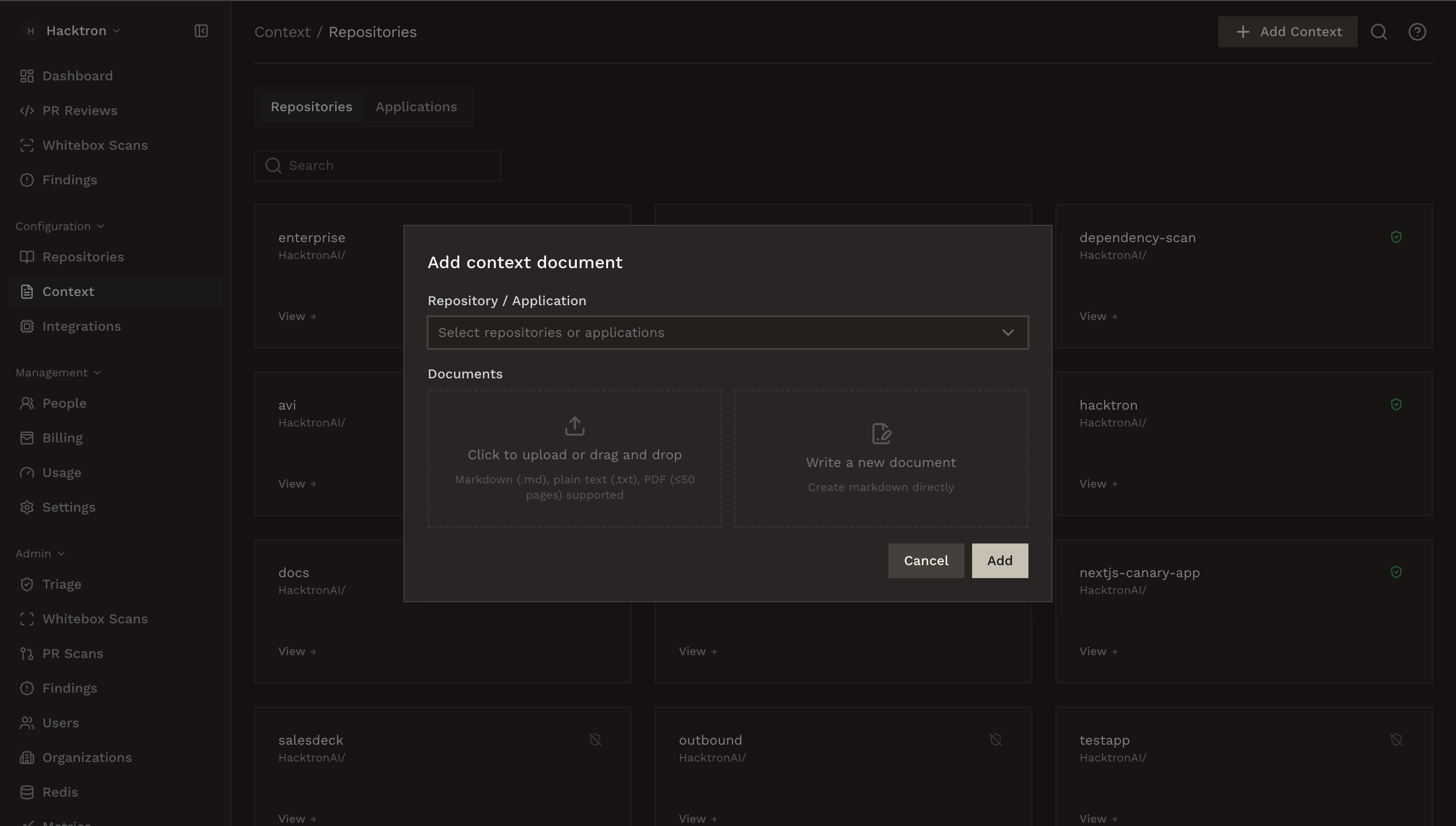
3
Upload or create documents
Drag in a file, or choose Create a document to write Markdown directly.
4
Add
Select Add. The document is saved and queued for the threat model.
5
Sync context
Go to the repository or application context page and select Regenerate.
This updates the threat model with the new context.
Manage documents
Open a repository or application to see its documents in the left sidebar. From there you can view a document, download a PDF, edit Markdown inline, see past versions in the History tab, or remove a document you no longer need.Automatically generated context
Hacktron creates some context on its own:- After application creation: if every repository in the new application already has a threat model, Hacktron can generate the application threat model in the background.
- After feedback: repeated triage signals, especially false positives and accepted risks, are folded into the repository threat model over time.
- Before a White-box Pentest: if a scanned application or repository does not have a threat model yet, Hacktron will bootstrap one before the scan.
- Manual sync: when you upload or remove context documents, you can manually regenerate the threat model.
Next steps
Applications
Create application groupings for related repositories.
Threat models
Understand how Hacktron generates and updates threat models.