

Configure access
There are two ways to configure repository access for GitHub Enterprise Server:GitHub App (recommended)
This will register a GitHub App on your server. You will be redirected to
your instance to create it.
This flow must be completed by a GitHub organization owner.
Personal Access Token
Create a personal access token that can be used to access repositories for white-box pentests.
Configure GitHub App
1
Open Integrations page
In Hacktron, go to Integrations and click Connect under GitHub Enterprise Server.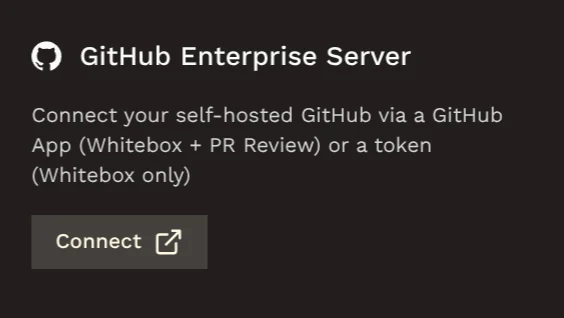
2
Initiate GitHub App installation
Enter your server base URL, e.g.
https://github.example.com, and the organization name.3
Sign in to your server (if required)
If GitHub prompts you to sign in, enter your GitHub login credentials as you normally would.
4
Register Hacktron as a new GitHub App
GitHub will prompt you to create a new GitHub App. Give it a descriptive name (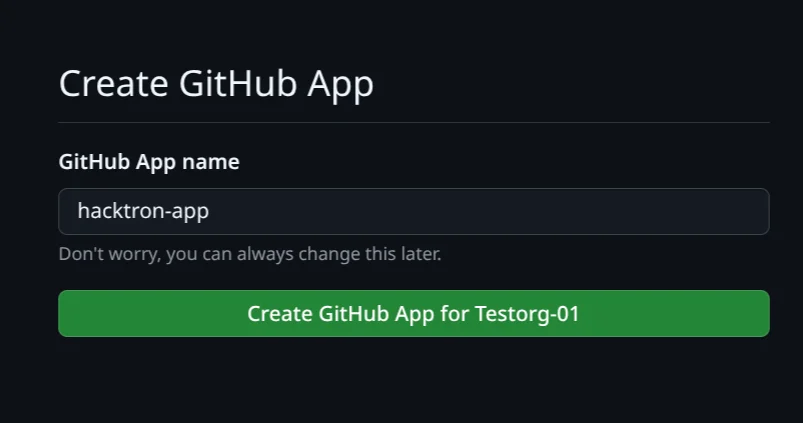
hacktron-app by default).5
Install the GitHub App
Your browser will now redirect you to install the app you just registered.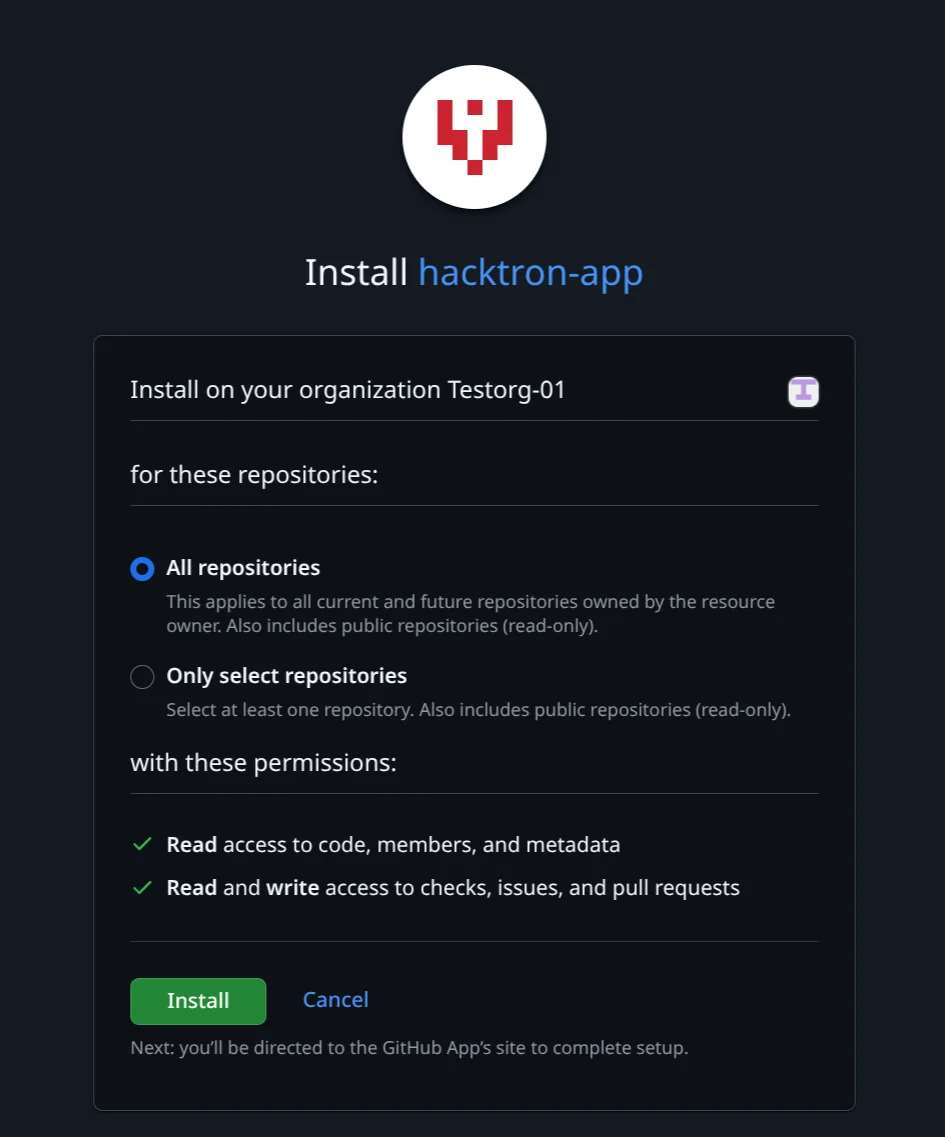
Hacktron requests the following permissions:
- Read access to code, members, and metadata
- Read and write access to checks, issues, and pull requests
Configure Personal Access Token
1
Go to the Personal Access Tokens page
Go to
http://<your-server>/settings/personal-access-tokens/new, or click on your avatar on the top right and select “Settings”,
then “Developer settings”, then “Personal access tokens”.2
Create a new personal access token
Give the token a descriptive name, e.g. “Hacktron”.Select the repositories you want to grant access to.Select the following repository permissions:Click “Create token”.Copy the token and save it in a secure location.
- Read-only access to contents
- Read-only access to metadata (automatically configured)
This is required for running white-box pentests.
3
Add the token to Hacktron
Go to the Integrations page in Hacktron and click Connect under GitHub Enterprise Server.Select the Personal Access Token option.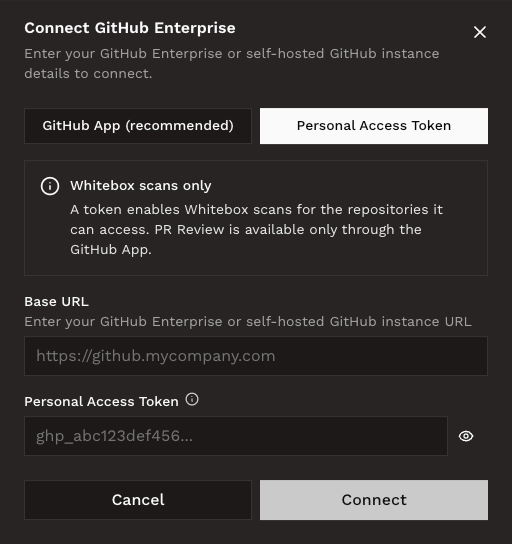
Use a GHES repository in a Whitebox Scan
On-premises deployments can use enabled GitHub Enterprise Server repositories as Whitebox scan sources. Connect the GHES instance first with either method on this page, then make sure the repository is enabled for the organization. When you create a Whitebox Scan:- Open Connected sources in the repository step.
- Select the enabled GHES repository and the branch or commit to scan.
- Add the rest of the scope, calculate the cost, and start the scan.
On-premises deployment
Configure first boot, internal Git access, and air-gapped support.
Start a Whitebox Scan
Select a source, define the scope, and run the assessment.