

Prerequisites
Before you start, make sure the organization has:- A connected repository or an uploaded archive to assess
- The branch or commit you want Hacktron to use
- For dynamic testing, the domains or URLs of the applications to test and instructions for accessing each one, even if no sign-in is required
- Enough Whitebox Scan credits, or an organization owner who can add a payment method and buy credits
Connect repositories
Connect GitHub, GitHub Enterprise Server, or GitLab before creating a pentest.
.zip, .7z, .tar.gz, or .tgz source archive of up to 2 GiB from Upload archive.
Create the pentest
1
Open Whitebox Scans
In the Hacktron dashboard, open the Whitebox Scans area and create a new
scan.
2
Choose the primary repository
Select the main repository and branch for the assessment. Add related
repositories if the application spans multiple services.For an on-premises GHES repository, connect and enable the repository before opening the wizard, then select it from Connected sources. To scan an archive instead, open Upload archive and add the source file.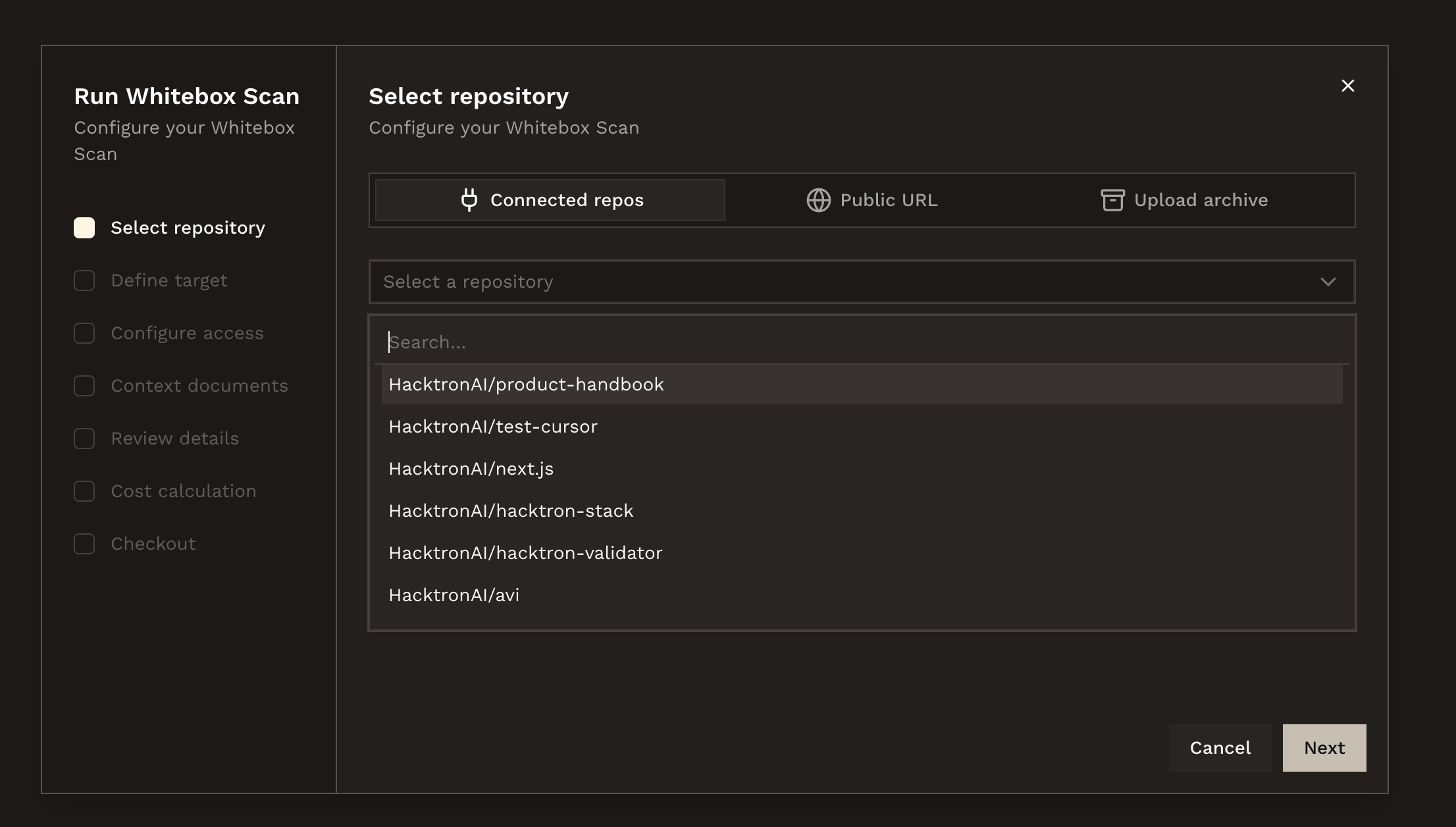
3
Configure dynamic testing
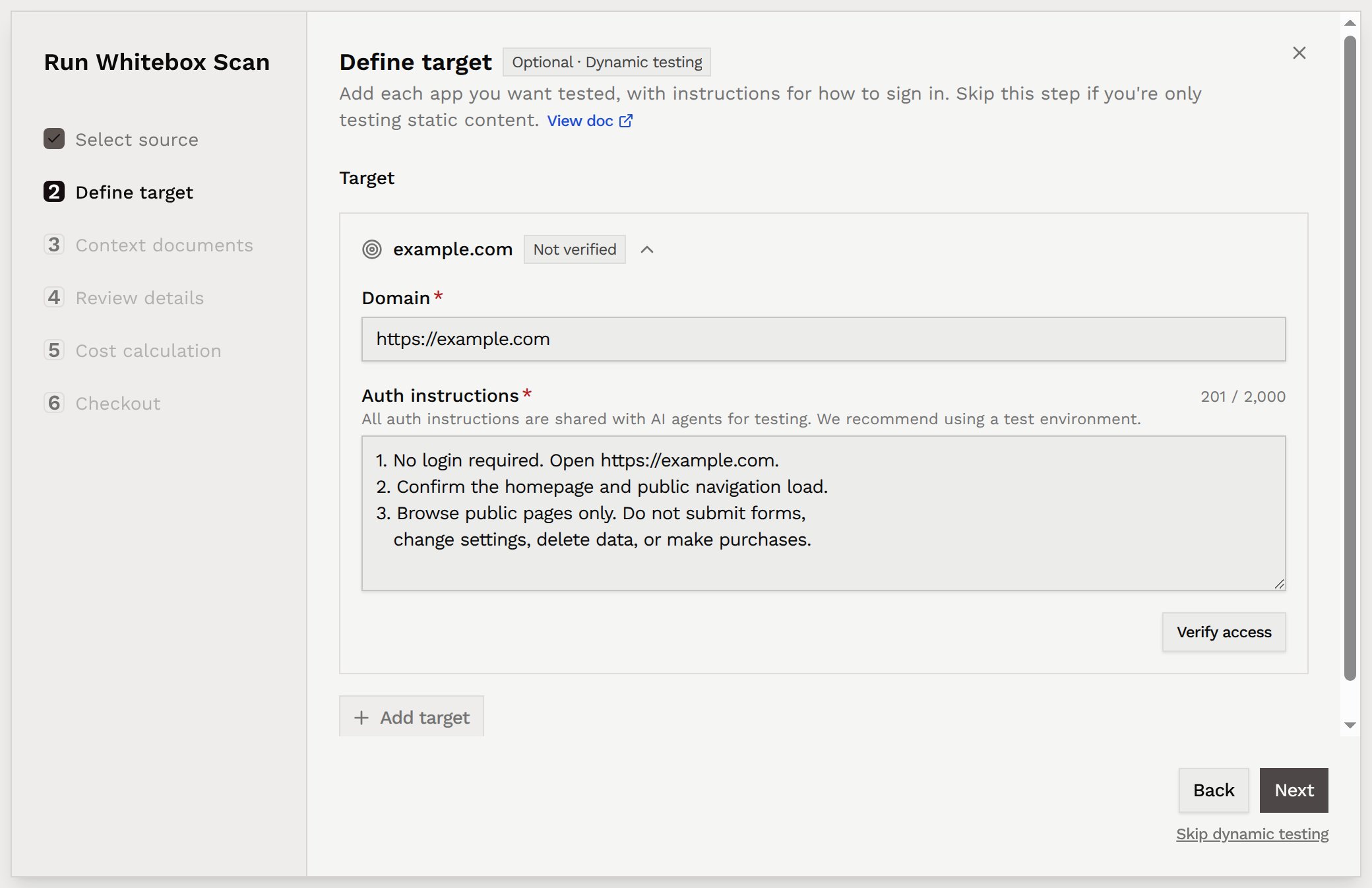
Dynamic testing is optional. Choose Skip dynamic testing to
continue with a source-code assessment without testing a deployed
application.
- Enter its Domain, such as
https://staging.example.com. - Fill in Auth instructions with login steps, dedicated test credentials, and how to confirm successful access. For a public site, state that no login is required and describe the page that should load.
- Click Verify access. Hacktron follows your instructions in a browser; a live access preview lets you watch the attempt. Wait for the target to show Verified before continuing.
4
Add context and review scope
In Context documents, add architecture notes, threat models, API specs,
or other material that helps explain the application. Then review the
repositories, targets, and access instructions in Review details.
5
Estimate the cost
Run the cost estimate and wait for it to complete. Hacktron estimates the
credit cost from the selected repositories and scope before the scan can
start.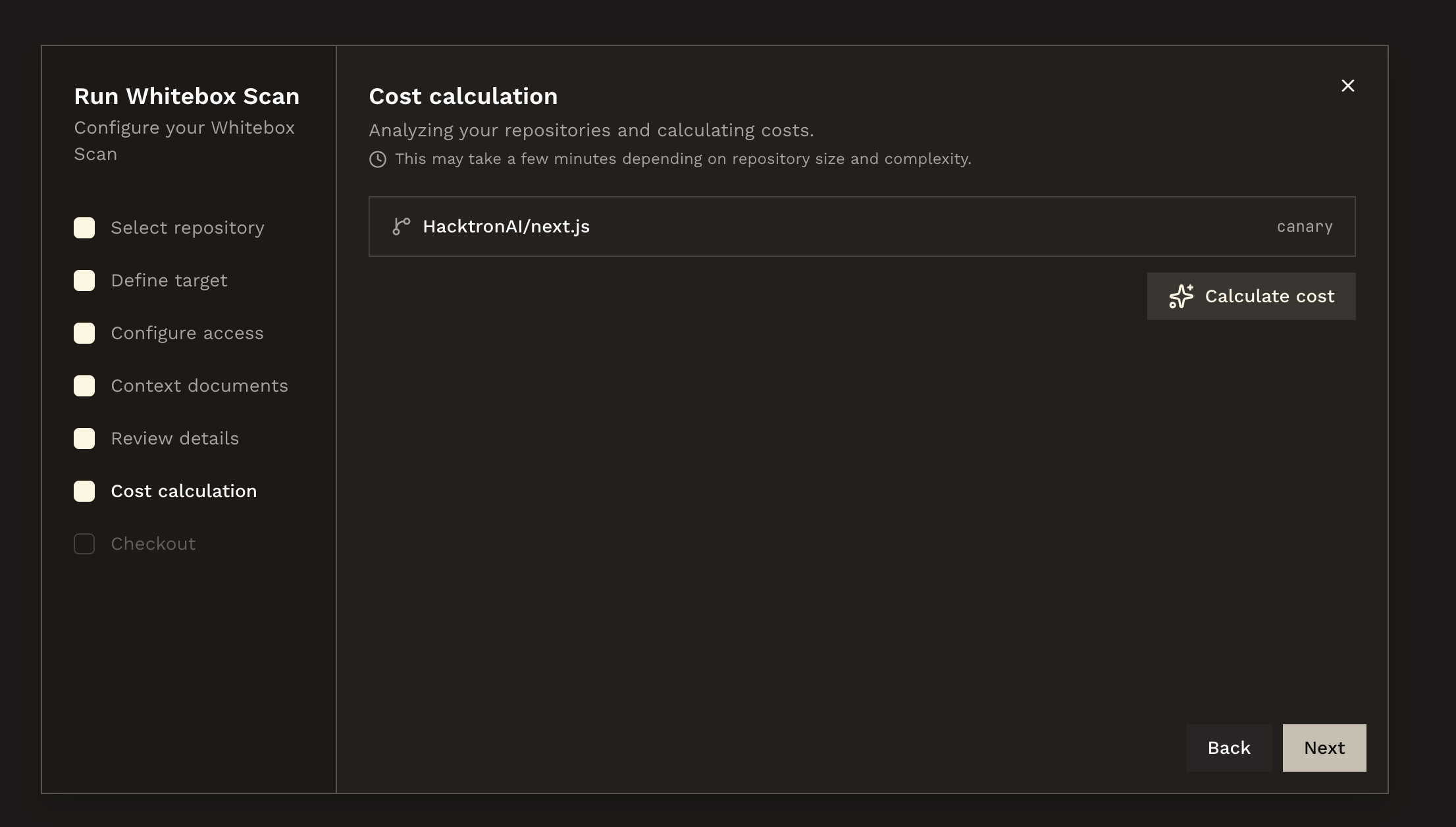
6
Review and start
Review the scope and estimated credit cost. When the run starts, Hacktron
deducts the estimated credits from the organization’s Whitebox Scan credit
balance. If the balance is too low, an owner can buy credits during
checkout.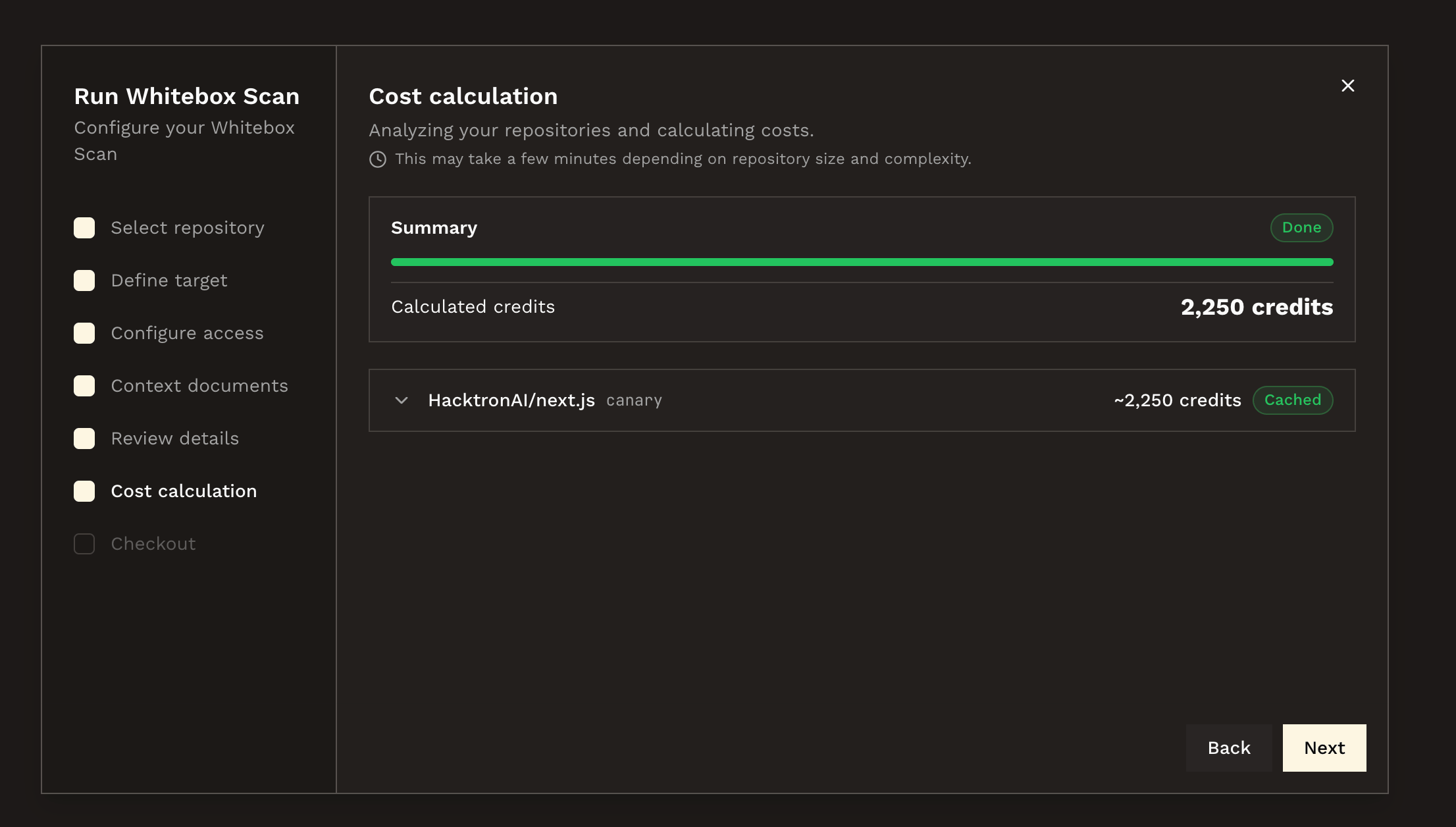
7
Track progress
Watch the run status in the dashboard. When the scan completes, review
findings and export the output needed for remediation or audit evidence.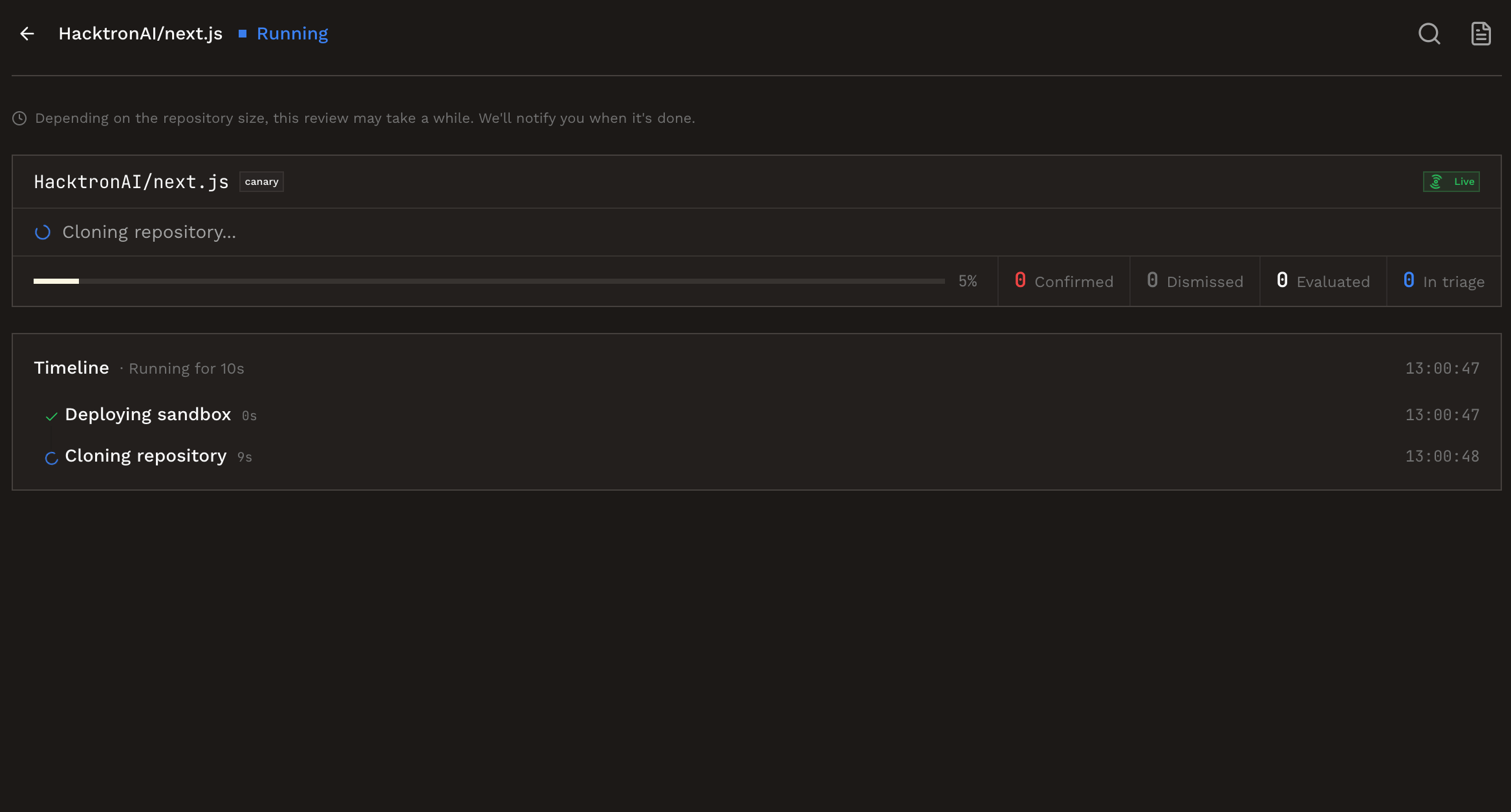
Writing auth instructions
Write instructions for each target as if someone were signing in for the first time. Include:- The starting URL and the steps to reach the application
- Test-account credentials and the role or permissions of each account
- How to obtain an MFA or OTP code, if required, and any SSO, CAPTCHA, or network access requirements
- What successful access looks like, such as a dashboard or account page
- Areas to focus on and actions to avoid, such as payments or deleting data
Scope checklist
API option
You can also start Whitebox Scans from the REST API. The API follows the same structure as the dashboard flow: create a cost estimation first, wait for a completed or partial estimate with credits, then start the scan with the same repositories and branches.Create cost estimation
Estimate the credit cost for one or more repositories.
Trigger a Whitebox Scan
Start a Whitebox Scan after the cost estimate is ready.
Next steps
Credits and billing
Understand balances, purchases, deductions, and refunds.
On-premises deployment
Configure the appliance, private Git hosts, and air-gapped support bundles.