> ## Documentation Index
> Fetch the complete documentation index at: https://docs.hacktron.ai/llms.txt
> Use this file to discover all available pages before exploring further.
# Automations
> Configure actions that run on triggers. Automate routine work such as remediation.
Automations act for you. Configure the rules that qualify a match, and when one comes in, Hacktron fires the automation: its **actions** run, and **notifiers** alert your team over Slack or email.
**Remediation** is the first available action. It starts a
[remediation](/platform/automations/remediation) run that fixes the finding,
and we'll expand automations with more actions over time.
Automations live under **Automations** in the dashboard sidebar. Organization **Admins** create and manage automations; other members can view them.
## Create an automation
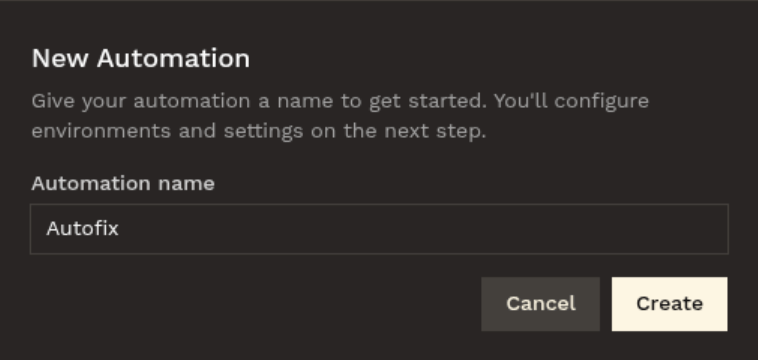
On the **Automations** page, select **New automation** and give it a name.
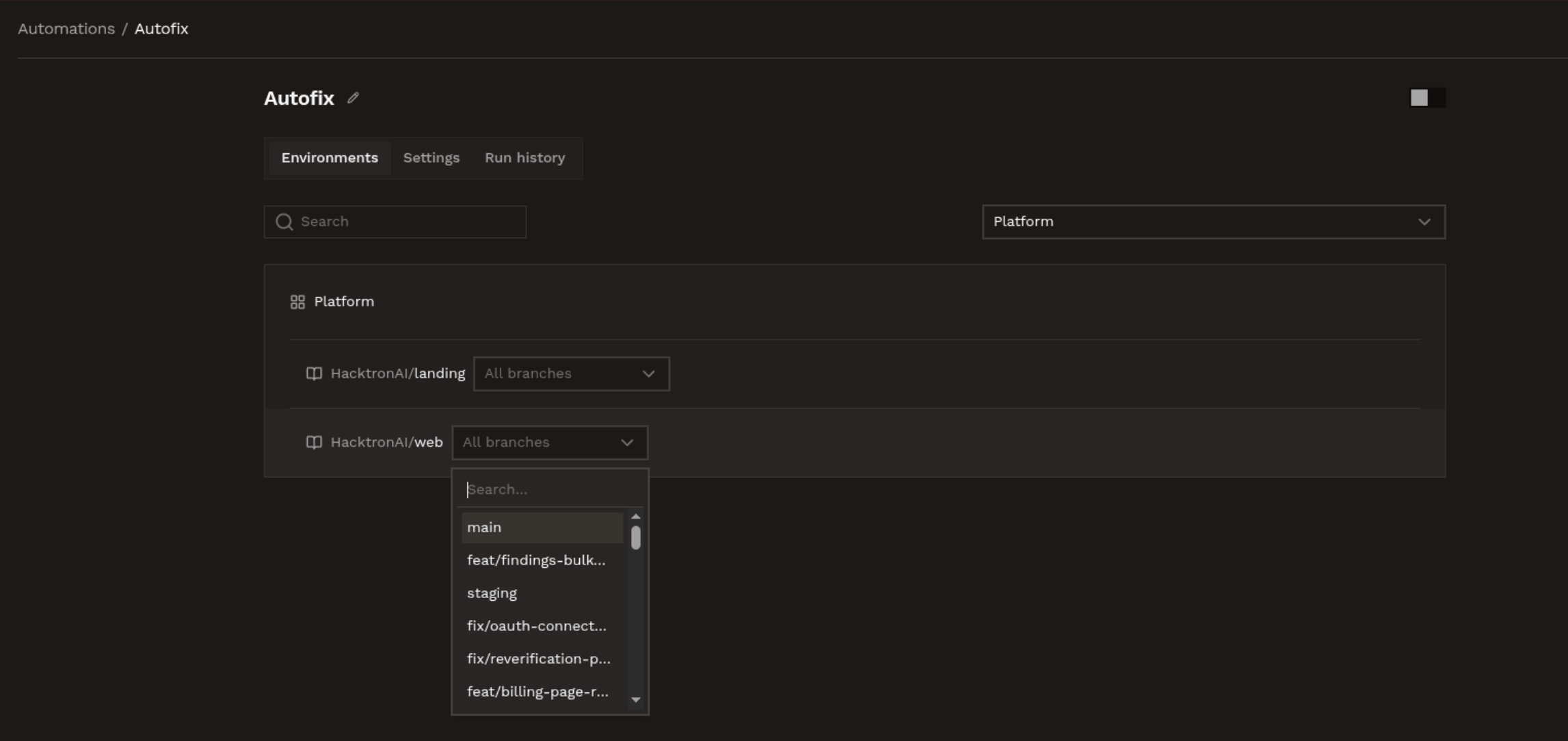
 Choose the repositories and [applications](/platform/context/applications) the automation covers. You can limit each entry to specific branches (up to two) or leave the branch selection empty to cover all branches.
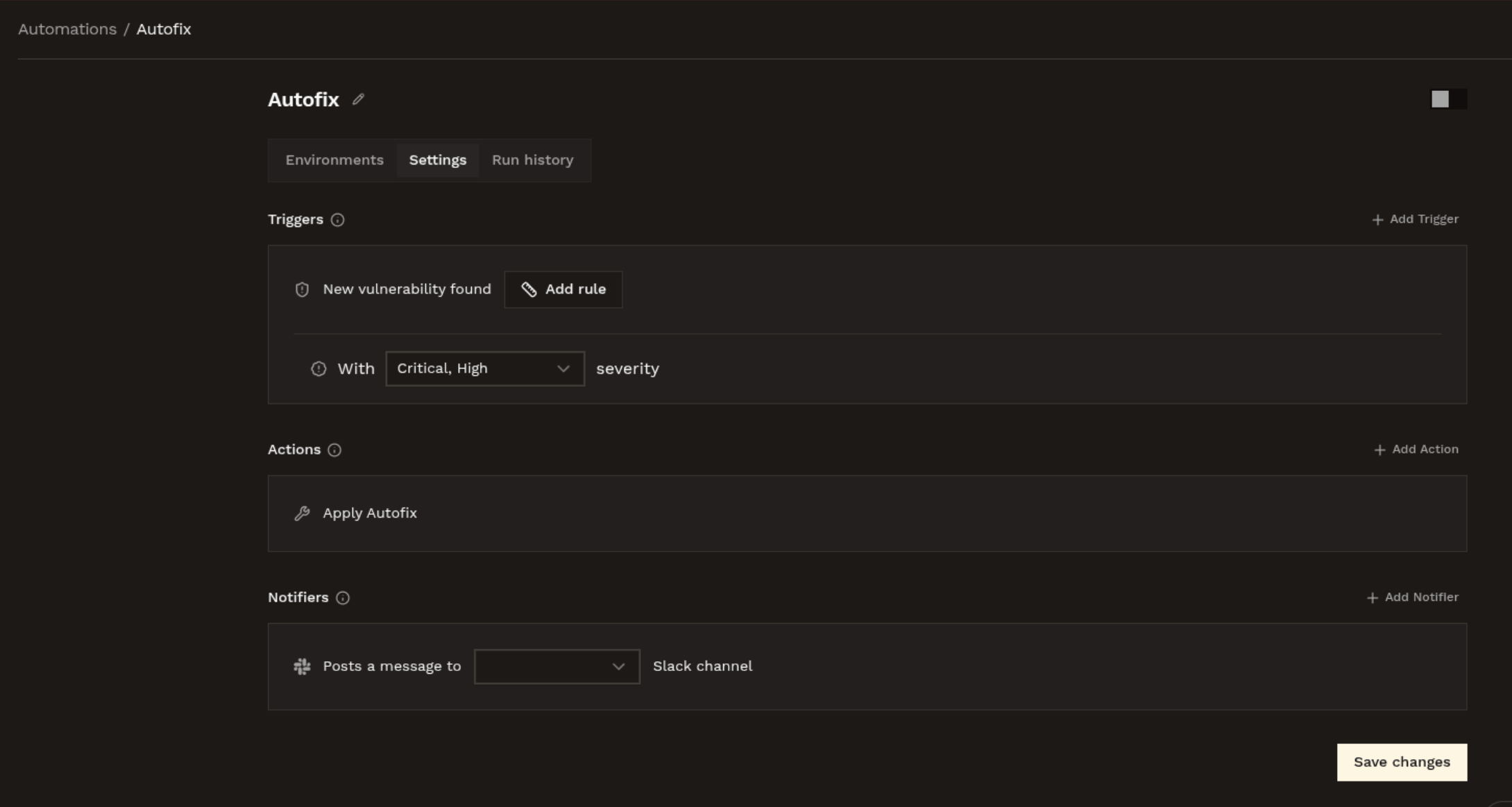
 On the **Settings** tab, set:
* **Triggers**: when the automation runs, for example a PR scan finding, it's narrowed by the rules you set, the severity levels that qualify, and scope rules that limit it to specific repositories or applications.
* **Actions**: what the automation does. **Remediation** starts a [remediation](/platform/automations/remediation) run for the matching finding.
* **Notifiers**: who hears about a run, whether it's a Slack channel, email recipients from your organization's members, or both.
On the **Settings** tab, set:
* **Triggers**: when the automation runs, for example a PR scan finding, it's narrowed by the rules you set, the severity levels that qualify, and scope rules that limit it to specific repositories or applications.
* **Actions**: what the automation does. **Remediation** starts a [remediation](/platform/automations/remediation) run for the matching finding.
* **Notifiers**: who hears about a run, whether it's a Slack channel, email recipients from your organization's members, or both.
 Select **Save**. An automation needs at least one environment, one trigger, and one action to run. Incomplete automations show an **Incomplete** badge and cannot be enabled. A save that removes required configuration disables the automation until it is complete again.
## When an automation fires
When a new finding matches an enabled automation's trigger, severity rules, scope rules, and environment (including any branch limits), the automation fires: a **Remediation** action starts a remediation run, which uses [automation credits](/platform/automations/credits). After taking action, we send you a notification.
Each finding is fixed at most once, a finding that already has a remediation run won't fire automations again.
### Notifications
* **Slack**: Hacktron posts a message to your channel linking the finding. The Hacktron bot joins public channels automatically; for a private channel, invite the bot to the channel first.
* **Email**: Hacktron emails the recipients you choose from your organization's members.
Notifications are best-effort, if one fails to send, it never blocks the remediation run itself.
## Run history
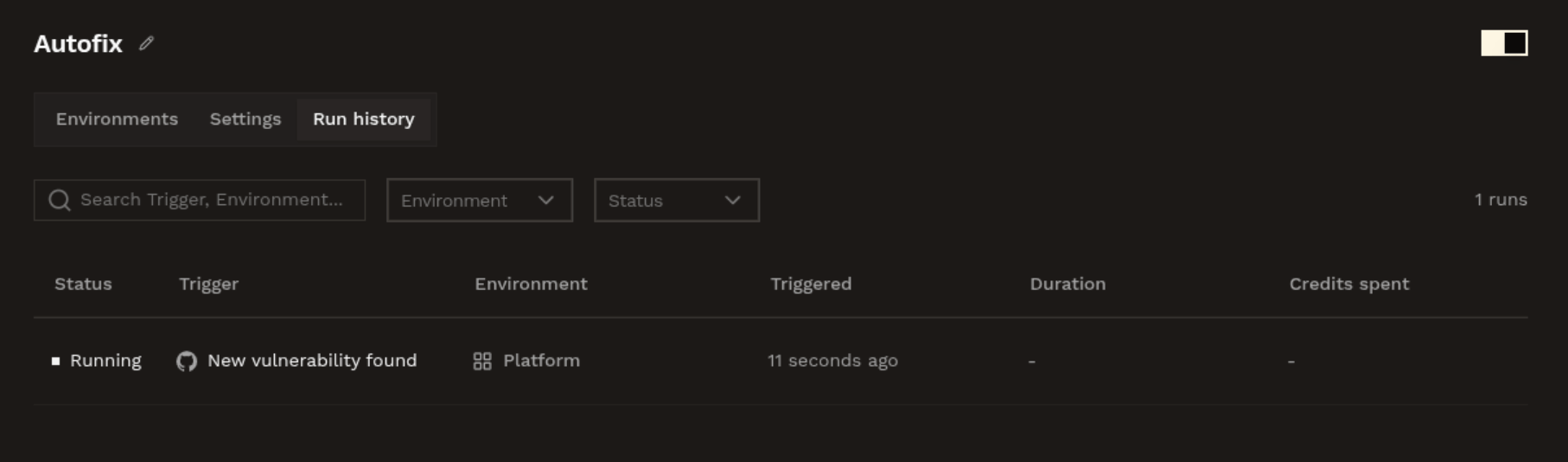
The **Run history** tab lists every run your automation has fired, with its status, the environment it matched, and the credits it used. Runs matched through an application are attributed to that application.
Run statuses mirror [remediation outcomes](/platform/automations/remediation#outcomes): **Running**, **Success**, **No fix needed**, **False positive**, and **Failed**. You can filter the history by status and search it.
Select **Save**. An automation needs at least one environment, one trigger, and one action to run. Incomplete automations show an **Incomplete** badge and cannot be enabled. A save that removes required configuration disables the automation until it is complete again.
## When an automation fires
When a new finding matches an enabled automation's trigger, severity rules, scope rules, and environment (including any branch limits), the automation fires: a **Remediation** action starts a remediation run, which uses [automation credits](/platform/automations/credits). After taking action, we send you a notification.
Each finding is fixed at most once, a finding that already has a remediation run won't fire automations again.
### Notifications
* **Slack**: Hacktron posts a message to your channel linking the finding. The Hacktron bot joins public channels automatically; for a private channel, invite the bot to the channel first.
* **Email**: Hacktron emails the recipients you choose from your organization's members.
Notifications are best-effort, if one fails to send, it never blocks the remediation run itself.
## Run history
The **Run history** tab lists every run your automation has fired, with its status, the environment it matched, and the credits it used. Runs matched through an application are attributed to that application.
Run statuses mirror [remediation outcomes](/platform/automations/remediation#outcomes): **Running**, **Success**, **No fix needed**, **False positive**, and **Failed**. You can filter the history by status and search it.
 ## Related docs
How a remediation run works and where the fix lands.
How runs are billed and how to keep a balance with auto top-up.
## Related docs
How a remediation run works and where the fix lands.
How runs are billed and how to keep a balance with auto top-up.